VoicePress v2.0.0
The Ultimate AI Text-to-Speech Plugin for WordPress
Introduction
Welcome to VoicePress! Transform your WordPress content into lifelike, engaging audio using the world's best AI voice providers. Version 2.0.0 introduces a massive update with support for OpenAI, ElevenLabs, Google Gemini, Cartesia, and Inworld AI.
Whether you want to automatically narrate your blog posts, create standalone audio announcements, or improve accessibility, VoicePress handles it all with smart text chunking, seamless integration, and stunning player designs.
Requirements
Ensure your environment meets these requirements for optimal performance:
- WordPress: 6.0 or higher
- PHP: 7.4 or higher (8.1+ recommended)
- FFmpeg: Required on your server for processing long content (chunking & merging). Contact your host if you are unsure.
- API Keys: You need valid API keys for the providers you wish to use:
Installation
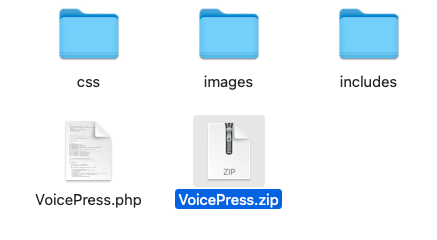
1. Download & Unzip
Download the main package from CodeCanyon. Unzip it to find the VoicePress.zip plugin file.
2. Upload to WordPress
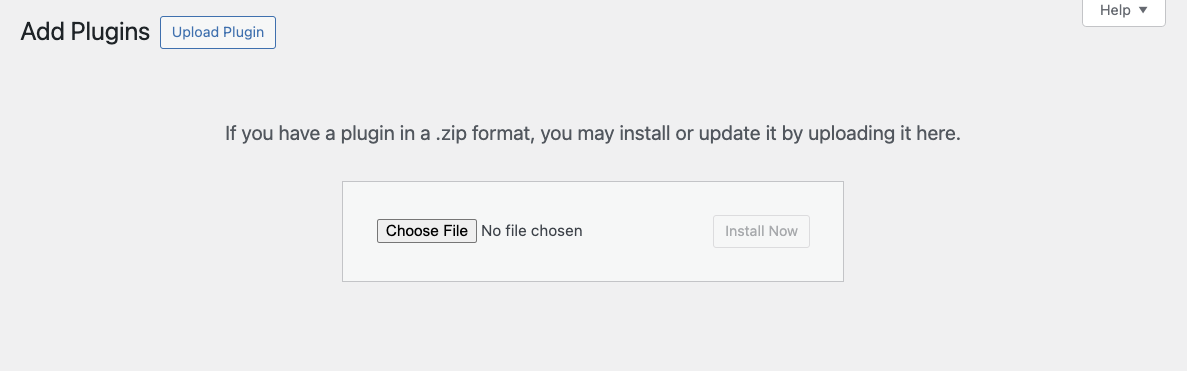
Go to Plugins → Add New → Upload Plugin. Select VoicePress.zip and install.
3. Activate
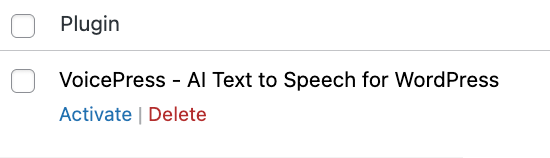
Click Activate Plugin. You will now see a "VoicePress" menu item in your dashboard sidebar.
General Configuration
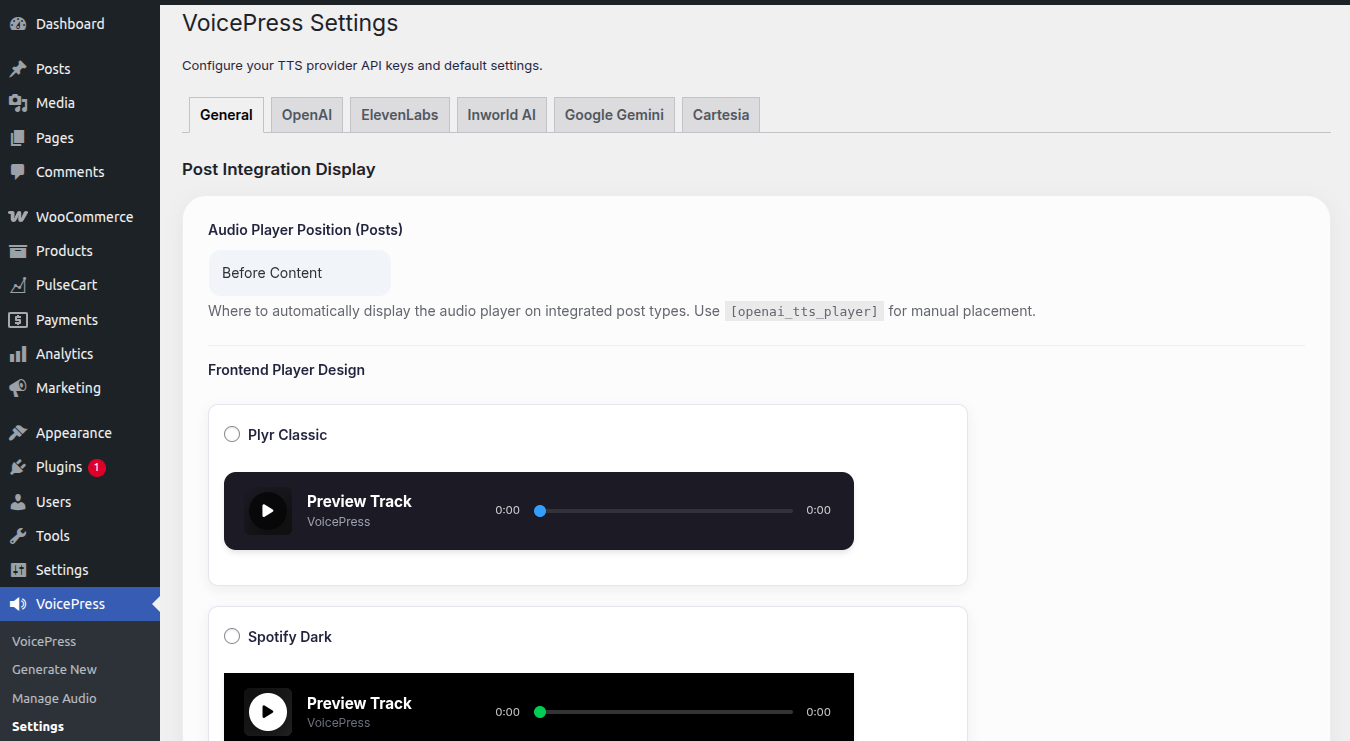
Navigate to VoicePress → Settings. Here you can configure global options that apply to the entire plugin.
Provider Setup
VoicePress supports multiple AI providers. You only need to configure the ones you plan to use.
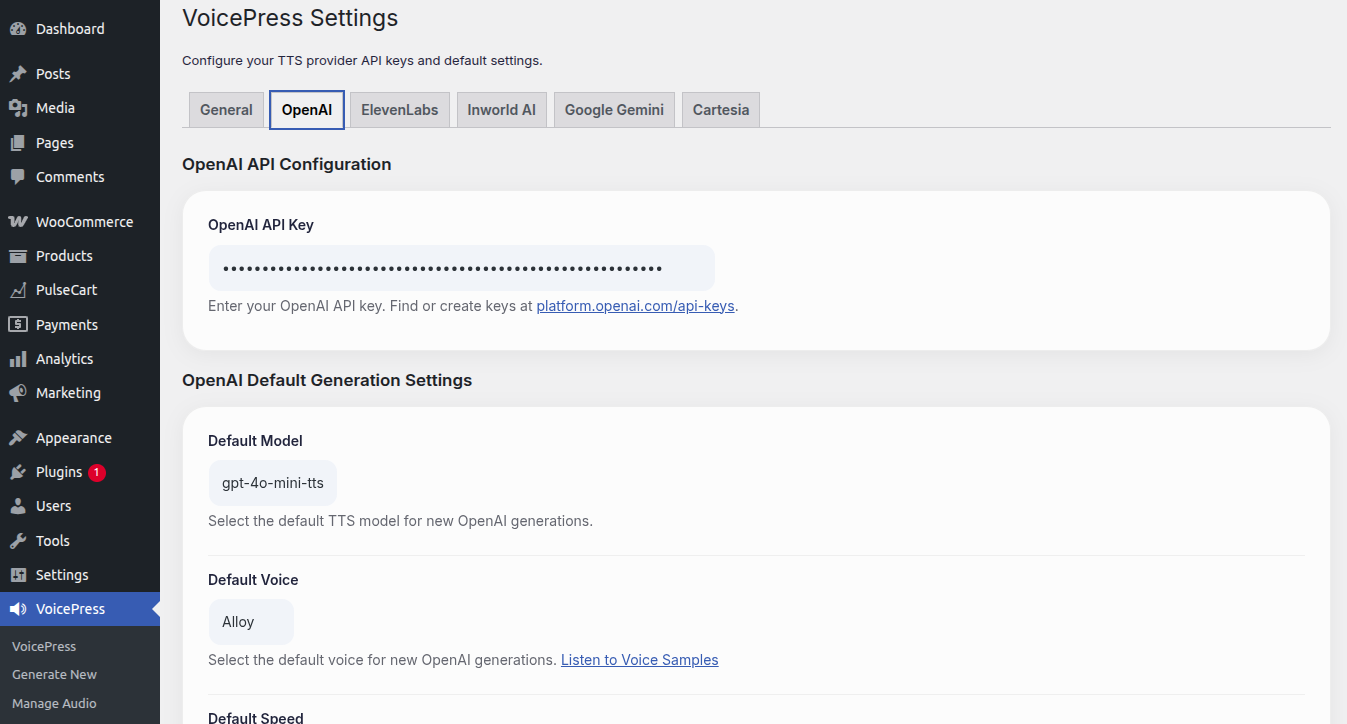
OpenAI
Enter your API Key. Choose your default model (tts-1 or tts-1-hd) and voice (e.g., Alloy, Echo, Nova).
ElevenLabs
Enter your API Key. Use the "Manage Favorite Voices" button to browse the ElevenLabs library and select voices to add to your local dropdown list.
Post Integration (Meta Box)
When editing a post or page, look for the VoicePress Audio meta box (usually in the sidebar or below the content).
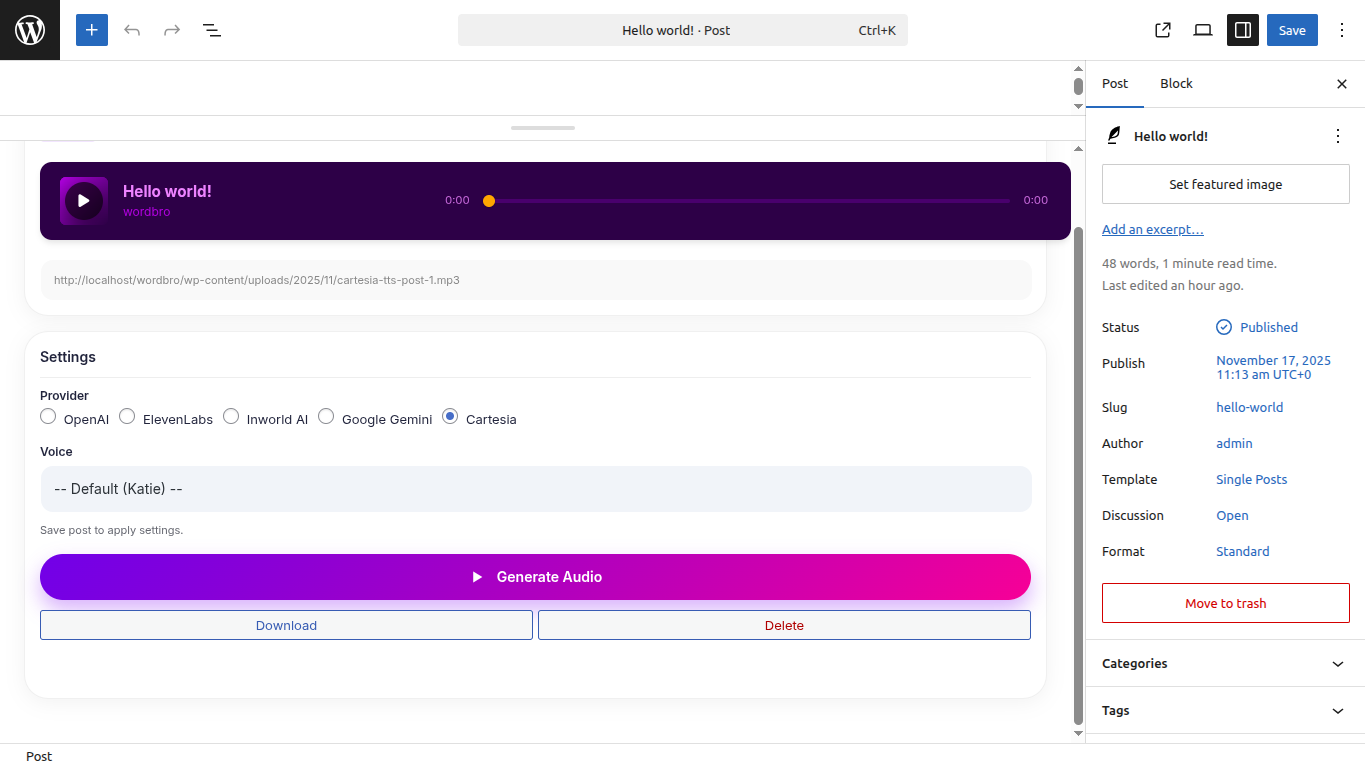
- Select Provider: Choose between OpenAI, ElevenLabs, Gemini, etc.
- Select Voice: Pick a specific voice for this post, or stick to the global default.
- Generate: Click "Generate Audio". The plugin will process the text, handling long content automatically via chunking.
Standalone Generator
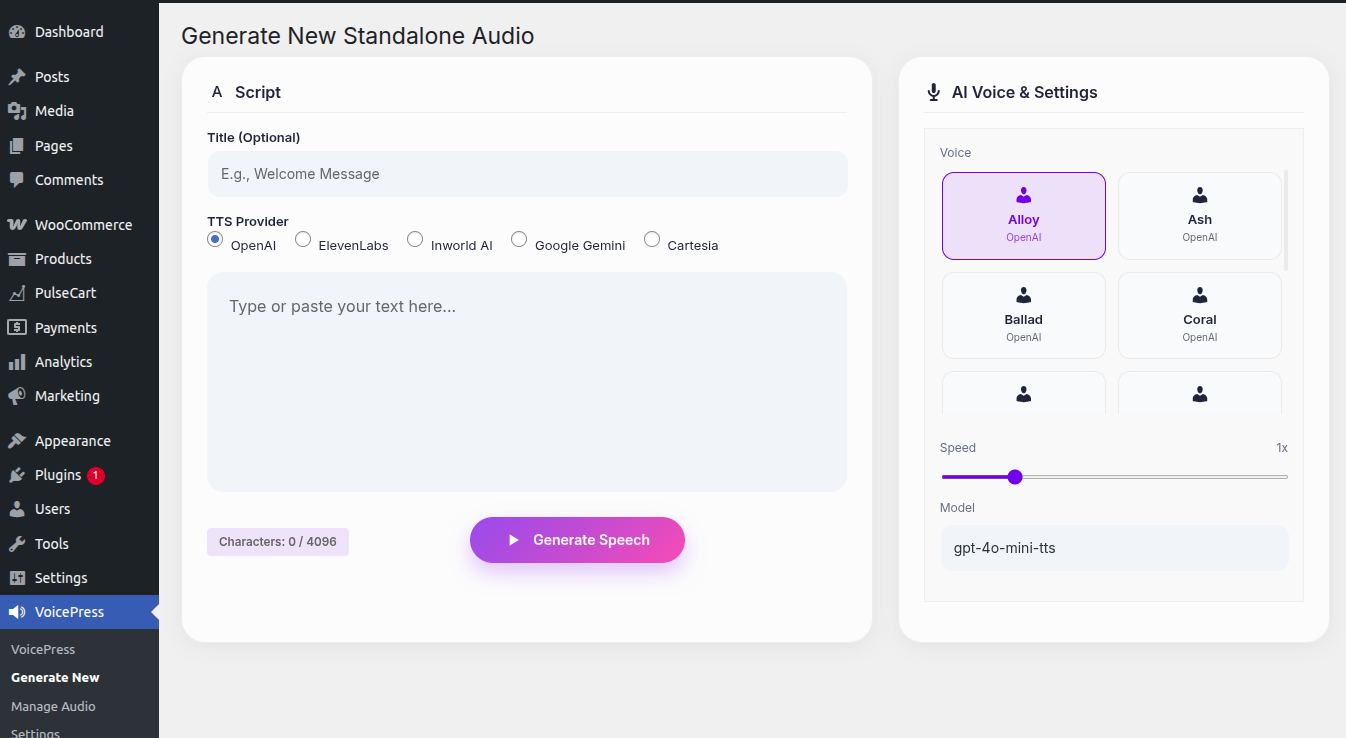
Need audio for a slide deck, a podcast intro, or a non-WordPress project? Use the Generate New Audio tool.
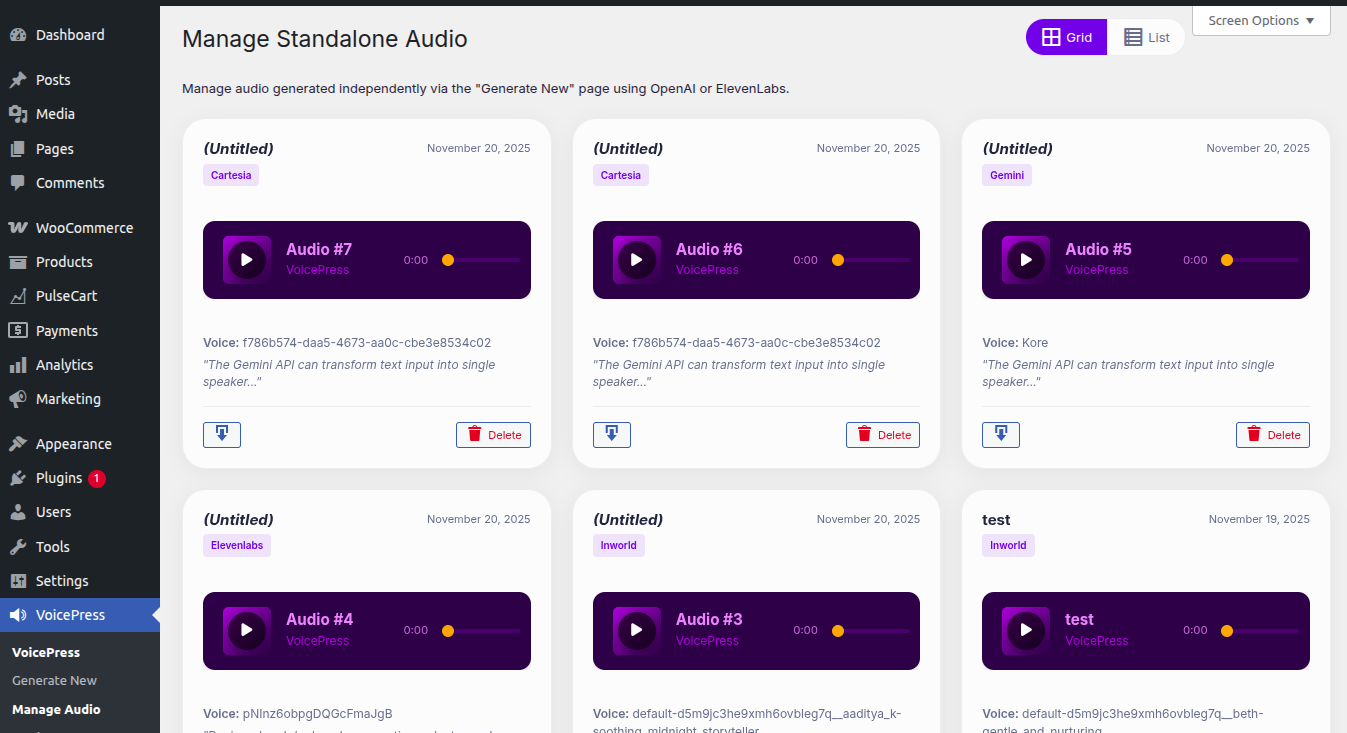
Go to VoicePress → Generate New. Enter any text, choose any voice, and generate instantly.
Player Designs
VoicePress v2.0.0 introduces a brand new, lightweight custom player engine. We've included over 40+ professional designs to match any brand identity.
Preview them live in the Settings page.
Troubleshooting
FFmpeg Error / Long Content Fails
If you see an error regarding FFmpeg, it means your server cannot process long text chunks. Solution: Ask your hosting provider to enable/install FFmpeg, or shorten your content.
Audio Not Appearing
Ensure you have actually clicked "Generate Audio" in the post meta box. The player only appears if a file exists.